Tab & Slot Box Generator
Clean Tab & Slot assembly (SVG for Laser)
Dimensions
Configuration
Material
Preview
Scroll: Zoom | Drag: Move
Example Gallery
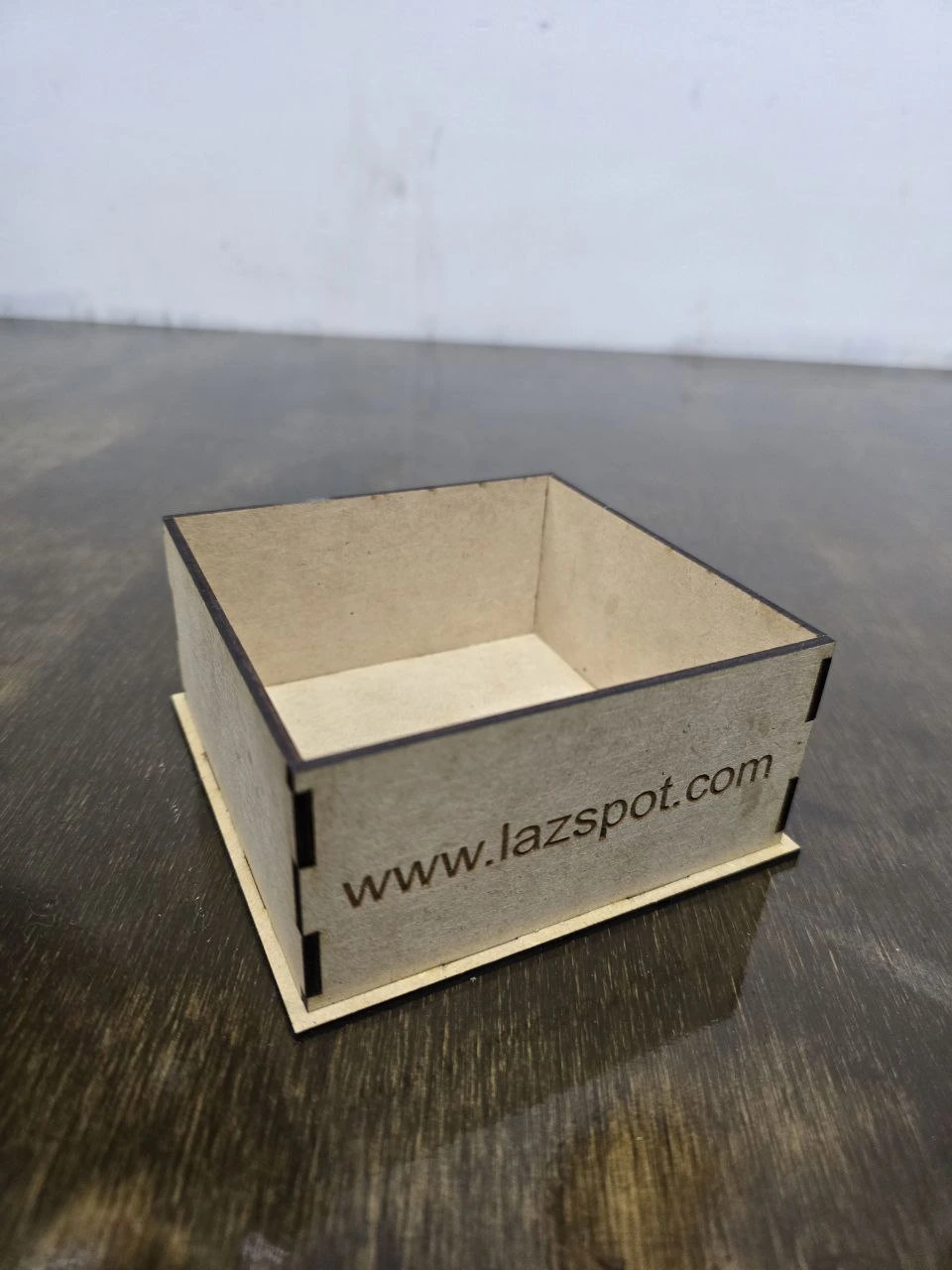
Master Guide: Designing and Manufacturing Tab & Slot Boxes
Welcome to the standard of elegance in parametric design for laser cutting. Our Tab & Slot Box Generator allows you to build containers with a visually clean finish, keeping exposed mechanical joints to a minimum. Unlike traditional finger joint boxes, this method inserts small tabs directly into slots cut into the flat faces of the material.
Mastering this type of joint is fundamental if your goal is to manufacture high-end products, such as premium cases, clear acrylic organizers, electronics enclosures, or point-of-sale displays. The minimalist look of Tab & Slot instantly elevates the perceived value of your products.
Battle of Joints: Tab & Slot vs. Finger Joint
[Image of tab and slot vs finger joint laser cut box]It is crucial to understand when to use each technique to optimize both the aesthetics and strength of your projects:
- Aesthetics and Burn Marks: The laser leaves a characteristic dark (charred) edge. In a Finger Joint assembly, you see this dark edge along the entire corner of the box. In Tab & Slot, the corners can be completely smooth, as the joints are moved inside the flat face, leaving only small dark rectangles visible.
- Mechanical Strength: The Finger Joint wins in raw strength because it multiplies the contact surface area for glue. However, Tab & Slot offers excellent resistance to shear force and is more than enough for 90% of packaging and decor projects.
- Cutting Speed: Cutting internal slots requires the laser head to pierce the material more times. This makes Tab & Slot slightly slower to cut than a continuous finger joint profile, but the visual result more than makes up for this extra time.
Advanced Parameters: Customize your Design
Our tool doesn't just make simple boxes, it allows you to mix styles and adapt the box to your exact needs:
- Inner vs Outer Dimensions: Vital for custom boxes. If you check "Use inner dimensions", the generator will ensure the air volume inside the box measures exactly what you entered. If unchecked, the entered dimensions will be the total outer footprint of the box on the table.
- Finger Joint Sides (Hybrid Mode): This is a "Pro" feature. If enabled, the side walls will join together using Finger Joints for maximum strength, but will join the base and lid using Tab & Slot. You get the best of both worlds!
- Edge Margin: Defines the distance from the corner of the box to where the first slot begins. A larger margin pushes the tabs towards the center, creating a cleaner design, but if it's too large, your box corners might be weak and pop open.
- Lid Window & Margin: Ideal for creating display boxes. It generates a top frame where you can glue a clear acrylic sheet underneath, allowing the product inside to be seen while keeping the box closed.
The Golden Rule: Measure your Material with Calipers
[Image of measuring wood thickness with digital calipers]The number one mistake beginners make in Tab & Slot design is blindly trusting the material manufacturer's label. Here's why that's a fatal error:
- Factory Variation: MDF sold as "3mm" almost never measures 3.0mm. Due to industrial sanding and humidity, it usually measures between 2.7mm and 3.2mm.
- Protruding Tabs: If your material is 2.8mm and you set the generator to 3.0mm, the tabs will be longer than the wall thickness. The result: the tabs will stick out of your box, ruining the flat aesthetic, or preventing the box from sitting flat on a table.
- Loose Slots: Similarly, the slot will be cut to 3.0mm wide. If your material is 2.8mm, the joint will be loose and the box will fall apart on its own.
Solution: Always measure your material with digital calipers (Vernier) at 4 different points on the board, average it out, and enter that exact value in "Thickness".
The Physics of Kerf in Internal Holes
[Image of laser cutting kerf width diagram]Kerf is the amount of material the laser beam burns and evaporates when making a cut (the width of the cut line). In a Tab & Slot joint, Kerf acts in a dual manner, and you must understand it to achieve a "click fit":
- On the Tab (Outer Contour): The laser burns outside the line. This makes the resulting physical tab smaller than your digital design.
- On the Slot (Inner Contour): The laser burns inside the line. This makes the resulting physical hole larger than your digital design.
- The Double Effect: If you don't compensate for Kerf, you have a smaller tab going into a larger hole. The box will be horribly loose. Our generator solves this by automatically applying your Kerf value: it digitally enlarges the tab and digitally shrinks the slot so that, after burning, both pieces match perfectly.
Workflow and Assembly Techniques
Once you have your perfectly generated SVG, the cutting and gluing process requires specific techniques to maintain that desired "visual cleanliness".
- Software (LightBurn/RDWorks): Layer order is mandatory. Make sure to configure your software to always cut the internal slots first (usually grouped in a different color layer) and the outer contours last. If you cut the contour first, the piece will come loose, shift slightly from the compressor air, and the internal slots will be crooked.
- Capillary Gluing (Acrylic): If making this box in acrylic, assemble the box completely dry (taking advantage of the friction from a good Kerf). Then, use a syringe with an ultra-fine needle to apply solvent cement (like Weld-On 3 or 4) to the outer joint of the tab. The liquid will flow inwards by capillary action, welding the piece without staining the faces.
- CA Glue and Wood: For MDF, avoid thick white glue (PVA) on these boxes, as it tends to "spit out" when pressing the tab in, ruining the aesthetics. Use medium-viscosity instant glue (Cyanoacrylate / Super Glue) applied only to the inside edge of the slot right before assembly.
Frequently Asked Questions (FAQ)
This happens exclusively because the "Thickness" you set in the generator is greater than the actual thickness of your material sheet. If you told the generator the material is 3.2mm, it will make the tabs 3.2mm long. If your sheet actually measures 2.8mm, you'll have 0.4mm of tab sticking out. Measure your material with digital calipers.
This indicates excessive Kerf or a material problem. If you set a very high Kerf (e.g., 0.3mm), the generator will make the tab huge and the slot very small. When trying to force the fit, the material will yield and break (very common in acrylic). Reduce the Kerf value in the generator. We recommend starting with a Kerf of 0.1mm for CO2 lasers or 0.05mm for Diode lasers.
If you glue the top tabs, the box will be permanently sealed. To make a removable lid, generate the box without checking the "Include Lid" option. Then, draw a simple rectangle the outer size of your box. To keep it from slipping off, draw another rectangle the size of the inner dimension and glue it centered underneath the lid, creating an internal stop or "lip".
The "Tooth Size" parameter dictates the width (the base) of the rectangular tabs. A large size (e.g., 30mm) will generate a few wide, very strong tabs, ideal for large, heavy wooden boxes. A small size (e.g., 10mm) will generate multiple thin tabs along the edge, which better distributes tension in fragile materials like acrylic.